How PitStop keeps costly reprints off your press

On average, PitStop makes 84% of incoming PDF files print-ready. That number matters because you already know where the real issue hides: making sure the file you received actually matches the order. When it doesn't, you need to spot the gap fast and fix it before the job reaches the press.
Here are the prepress issues that show up most often in commercial print, and what PitStop does about each one.
When the size is wrong
A customer orders A4 and uploads a US Letter file. PitStop resizes the document to A4, redefines the page boxes and repositions the crop marks. Add one more check to see whether any text now sits in the safety zone and risks being trimmed. Job done.
Resizing works when the intent is clear. It doesn't work when the file and the order describe two different products. If someone orders business cards and sends an A5 flyer, resizing helps no one. In that case, let PitStop flag the mismatch automatically and send the job back for a correct file. Use variables to make that size check flexible across your product catalogue.
Example:

The original document is A4 but must be resized to US Letter.

Document is resized. Changes to be approved before printing.
When the bleed is missing
Missing bleed is one of the most frequent issues in the industry, and it ends up as a thin white line along the trim edge. PitStop detects when bleed is absent and generates it for you.
That generation goes well beyond mirroring the page content. PitStop extends vectors rather than rasterizing them. When objects are clipped, it extends the clipping object into the bleed zone and reveals content that was hidden underneath.
Example:

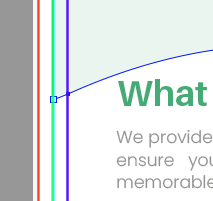
The green shape has been gracefully extended and not mirrored.

Clipped image content has been revealed.
When the colors are wrong
A file arrives full of bright RGB and a scattering of leftover spot colors. PitStop checks for both and converts to CMYK in seconds. You decide which spot colors to preserve and generate separations from there.
Unsure how a conversion will land? Use the Gamut comparison feature to see the deviation before you commit, then adjust the file if you need to.
Muddy black text has the same easy answer. PitStop detects impure blacks in text and objects and fixes them, so your blacks print the way the customer expects.
Example:
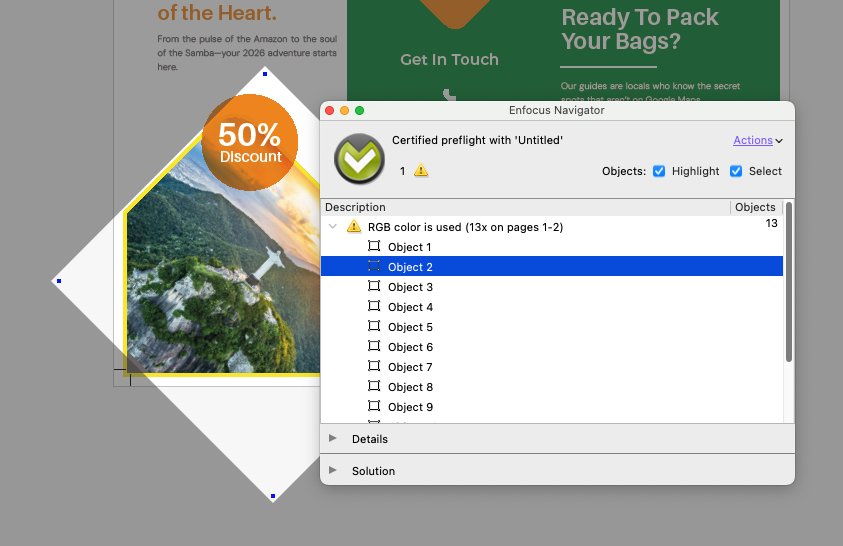

The original document as displayed in the editor.

Gamut comparison enabled, showing color deviations.
When images look fuzzy
Low-resolution images will print. They just won't look good on the sheet. PitStop detects them and reports back before you hit print.
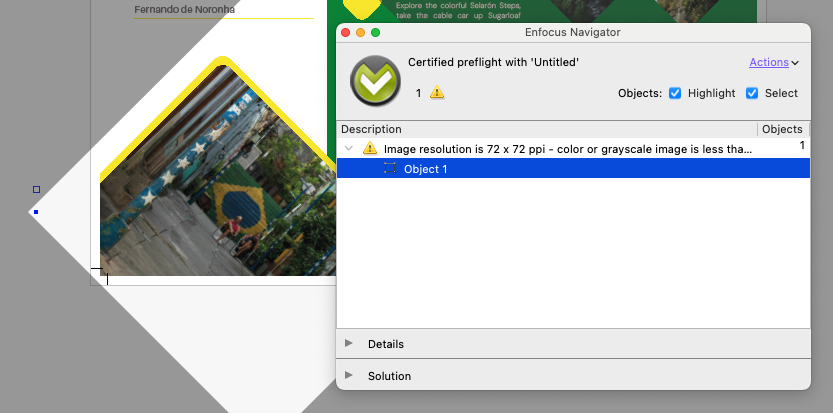
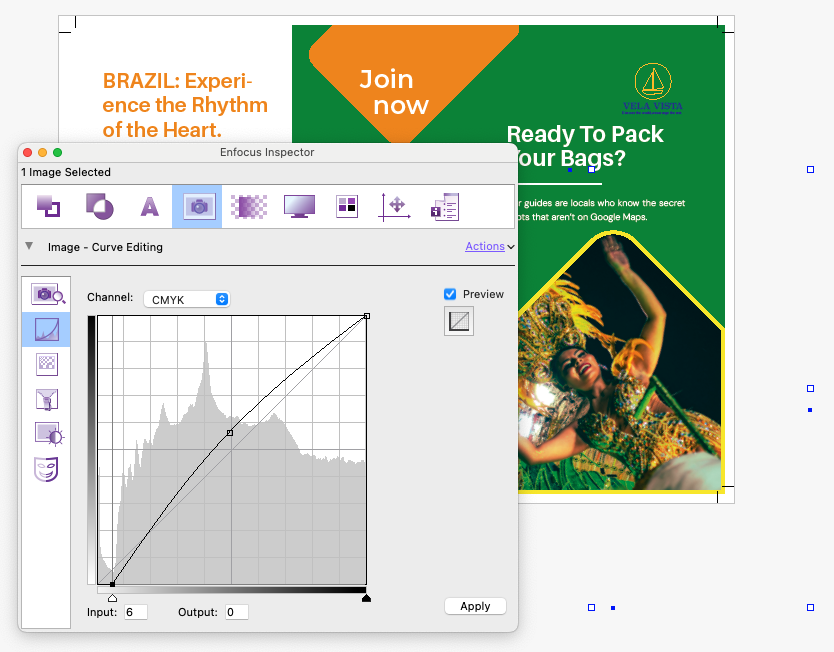
It also handles the repair work: resample images up or down, apply curves, sharpen pixels, and recompress when file size becomes a concern.
When fonts and text cause trouble
A missing font can trigger a font substitution at the RIP. Text that renders incorrectly is a classic reason for a reprint. Catching font problems at the start of the process saves you both the material and the hours.
Whether a font is missing, corrupted or short a few glyphs, PitStop warns you before the mistake gets expensive. Embed the font where that's possible, or replace it when that suits the job better.
Very small text brings its own risk. It's hard to reproduce, hard to read, and unforgiving on registration. PitStop detects text below your threshold and, where it makes sense, sets it to overprint in one step.
When things disappear or misprint
Our colleague Freddy Pieters likes to point out that leaving Overprint Preview switched off in Adobe Acrobat is responsible for the pointless destruction of zillions of trees a year. He has a point.
White objects set to overprint are a genuinely nasty production issue. Nobody notices anything, then the customer logo vanishes on the printed sheet. PitStop detects overprint settings and corrects them automatically, before they bite.
Thin parts are another trap. Most of the page prints perfectly, while the narrowest elements either drop out at the RIP or fill in with ink on press. PitStop checks thin parts so you can identify a problem file in seconds.
Example:

When overprint preview is disabled, everything looks normal.
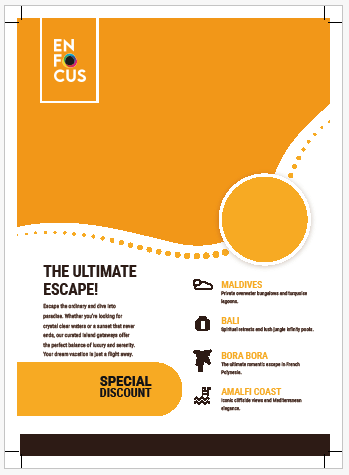
When overprint preview is enabled, issues appear.
And plenty more
These are the issues you'll meet most often, and the list keeps going: transparency usage, an excess of vector nodes that slows down the RIP, minimum stroke weights, and more.
PitStop in your production is a safety belt. You catch problems early, adjust files to your own production requirements, and keep reprints off the schedule.
Your operators still matter
Automation like this can look like a threat to the people doing the work. In practice it does the opposite. PitStop takes on the exhausting job of opening file after file and tells your operator exactly which ones need a decision. Your expertise goes where it earns its keep.