Run Your Favorite PitStop Workflows from a Single Keystroke

Save clicks, reduce repetition, and work faster with Quick Runs

As you become more experienced with PitStop Pro, you'll naturally build your own production workflows. Perhaps you run a Preflight Profile, apply one or more Action Lists, then perform a final validation before sending a file to production.
Running those tasks individually works perfectly well. But when you find yourself repeating the same sequence dozens of times a day, the extra clicks quickly add up.
This is exactly where Quick Runs come in. They allow you to combine multiple PitStop resources into a single workflow and execute them in one step. Better still, your favorite Quick Runs can be launched directly from a keyboard shortcut, helping you work faster, more consistently, and with fewer manual operations.
What Is a Quick Run?
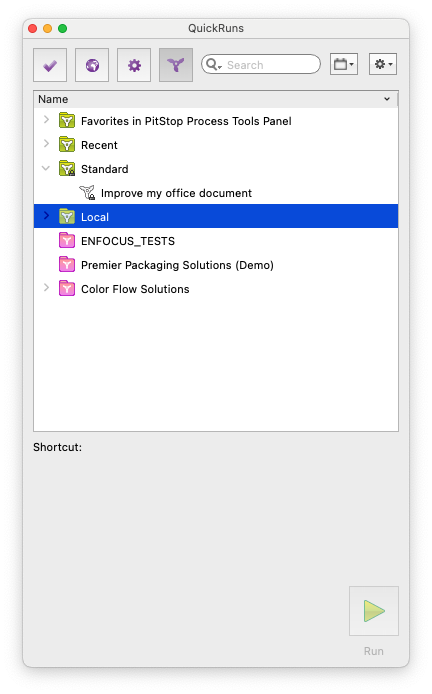
A Quick Run is a container that can combine multiple PitStop resources, including:
- Preflight Profiles
- Action Lists
- Global Changes
When executed, PitStop processes those resources one after another according to the order you define. Think of a Quick Run as a way to package a recurring workflow into a single command.
Instead of manually running several resources every time a file arrives, you can execute the entire sequence with just one action.
Why Use Quick Runs?
Quick Runs offer several advantages:
- Fewer repetitive clicks - Tasks that normally require several manual steps can be triggered from a single command.
- Better workflow consistency - By grouping resources together, you ensure the same process is applied every time.
- Easier maintenance - Rather than creating one massive Action List, you can maintain smaller, reusable resources and combine them as needed.
- Faster execution - Your most frequently used workflows can be launched directly from a keyboard shortcut.
Building a Quick Run
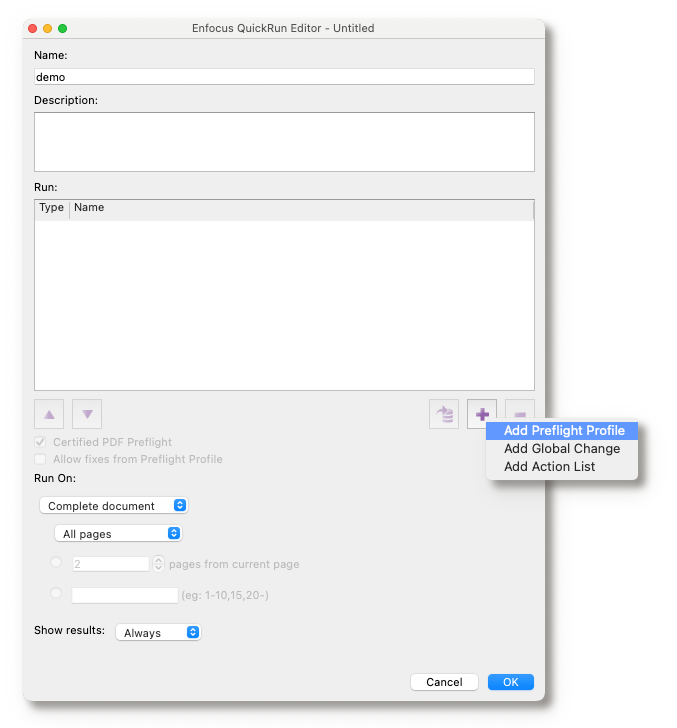
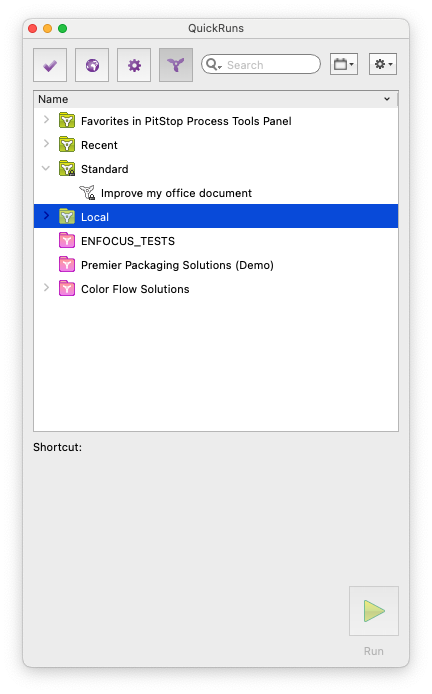
Creating a Quick Run is straightforward. Simply click the "+" button and choose the type of resource you want to add:
- Action List
- Preflight Profile
- Global Change
You can then arrange the resources in the sequence that best fits your workflow. This flexibility allows you to create simple Quick Runs for routine tasks or more sophisticated workflows that combine multiple checks and fixes.
Reusable resources
Before creating a Quick Run, many users already have a collection of Action Lists and Preflight Profiles they rely on every day. Then it becomes very easy to create special Quick Runs where some can use similar parts and others have specific variations.
One may say that Preflight Profiles already permit adding additional Action Lists. So what is actually the difference with Quick Runs. The difference is: execution order.
The Importance of Execution Order
One of the most valuable characteristics of Quick Runs is that resources are executed in the exact order in which they appear. This offers a level of control that can be very useful in production environments.
Consider the following example:
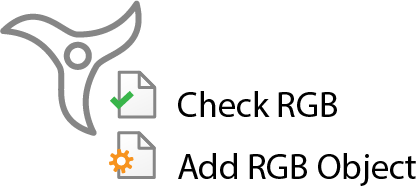
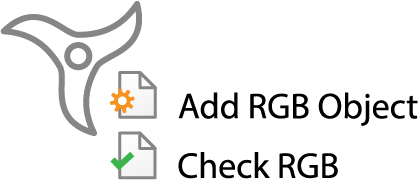
1. A Preflight Profile checks whether RGB objects exist.
2. An Action List creates a new RGB object.
If the Preflight Profile runs first, it may report no issues. If the Action List runs first, the Preflight Profile will detect the newly created RGB object. The final report can therefore differ depending on the sequence of operations.
With Quick Runs, the order is entirely under your control, making the workflow predictable and easy to understand.
Your Favorite Workflows, One Keystroke Away
Perhaps the most overlooked feature of Quick Runs is their keyboard shortcut support. Any Quick Run that is added to your Favorites automatically receives a shortcut key.
For example:
- Quick Run #1 uses Ctrl+Shift+Alt+A on Windows or Cmd+Shift+Option+A on macOS
- Quick Run #2 receives the B equivalent
- Subsequent Quick Runs continue alphabetically
An important detail is that shortcut assignments remain stable. If a favorite Quick Run is removed, the remaining shortcuts are not automatically reassigned. The vacant shortcut simply becomes available for future use.
This consistency helps users build muscle memory around their most frequently used workflows. Once you get used to launching common tasks directly from the keyboard, it's surprisingly difficult to go back.
Other Useful Options
Certified PDF Preflight
When enabled, PitStop can certify the PDF after the Quick Run executes a Preflight Profile.
This certification stores:
- The Preflight Profile used
- The generated report
- A digital signature verifying the integrity of the file
This can be valuable in production environments where traceability and accountability are important.
Allow Fixes from Preflight Profile
Disable this option if you want the Preflight Profile to report issues without making any corrections.
Run On
This setting allows you to determine which parts of the PDF the Quick Run should process.
Typical Use Cases
Quick Runs are particularly useful when you repeatedly perform the same workflow, such as:
- Running a Preflight Profile followed by production fixes
- Preparing incoming files for a specific press or finishing workflow
- Applying multiple Action Lists before generating a final report
- Creating standardized PDF preparation procedures for operators
In each case, Quick Runs help eliminate repetitive manual steps while ensuring the workflow is executed consistently.
Conclusion
Quick Runs are one of the most effective productivity features in PitStop Pro.
They allow you to combine multiple PitStop resources into a single workflow, execute them in the exact order you choose, and launch recurring tasks directly from the keyboard.
If you routinely perform the same sequence of operations, a Quick Run can help you reduce repetitive clicks, improve consistency, and process files more efficiently every day.
Sometimes the biggest productivity gains come from automating the steps you already perform. Quick Runs are a perfect example.