Everything You Need to Know About Smart Variables

Smart Variables are a (hidden) gem of the PitStop ecosystem. In this article, I’ll explain why you should use Smart Variables in your workflow. After that, I’ll cover how to create them and how advanced Smart Variables can be. Finally, we’ll see what happens when Smart Variables are used in PitStop Pro and the PitStop Server Switch App.
The typical rookie mistake
PitStop Pro is powerful, and it is permissive. Sometimes a bit too permissive. When you build Preflight Profiles or Action Lists, there is one trap that catches almost everyone: duplication.
Take the classic example: resolution. You have a Preflight Profile that checks resolution for your commercial printing products. You set a ppi value, it works, you are happy.
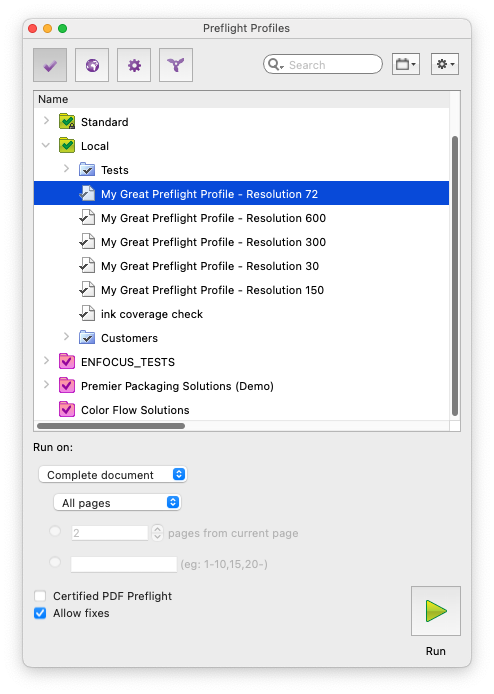
Then wide-format products arrive. Easy. You duplicate the profile and lower the resolution threshold. Job done. Then fine art printing arrives, and that needs a higher resolution. You know the recipe by now: duplicate, duplicate, duplicate.
Before long, your list of Preflight Profiles and Action Lists has exploded. Technically, nothing is wrong. PitStop still delivers. But the problem is waiting to bite.
Because one day you need to change a single check everywhere. So you open every Preflight Profile and every Action List you work with, and you edit them one by one. And then the question hits you: are you sure you did not miss one?
Wouldn't it be easier to keep a handful of Preflight Profiles and change the values on the fly? What if that resolution value could be different every time you run the profile?
When to consider variables
Look at any Preflight Profile or Action List you run and you will find two kinds of checks. Some are static: you need them for every product you make. A non-embedded font is a problem no matter what comes off the press. Others are production specific: resolution, page count, dimensions.
Take a set of book covers. They share checks such as bleed, but the format, so the dimensions, changes from one job to the next. That second group is where variables earn their keep.
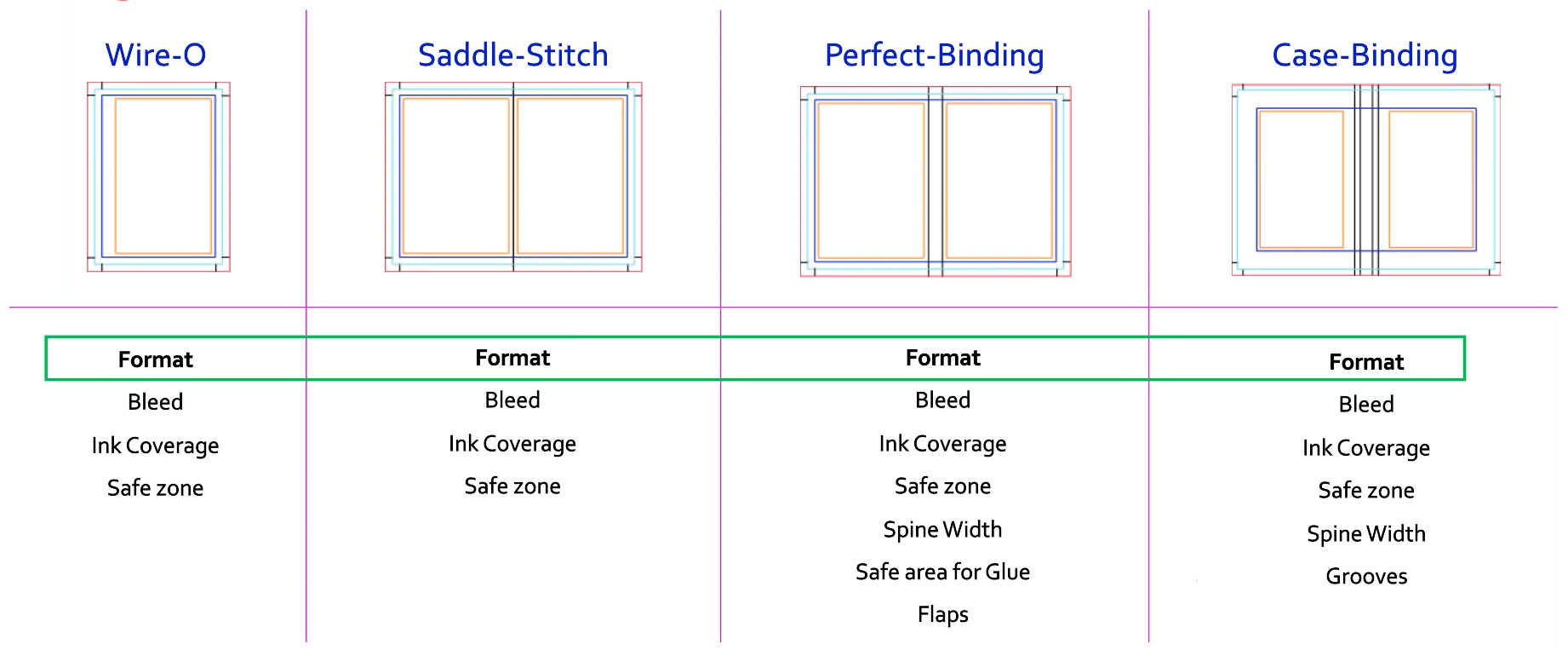
So, the purpose of Smart Variables is simple. You avoid duplication, and you feed dynamic values into your Preflight Profile or Action List at the moment it runs.
How variables work in the interface
Using variables in PitStop takes a click. Start by switching on "Enable variable names" in the PitStop Pro interface. Every element that accepts a variable then shows a blue icon. Click it and PitStop asks you to pick the variable you want.
If no variables appear, you first need to point PitStop at a Variable Set.
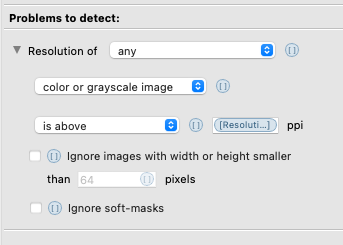
A Variable Set is the container that holds all your variable definitions, and it is the core concept here. Smart Variables create a loose connection between your Preflight Profile or Action List and the Variable Set, so you can swap in a different Variable Set for a different purpose. The only condition is that the set contains the variable definitions your PitStop preset expects.
How to create variables
Every Smart Variable lives in a Variable Set, and you can always start from a standard one. We encourage you to do so. The standard "Smart Preflight Variable Set - PitStop Pro - v1.4" already gives you more than 40 variables, ready to use.
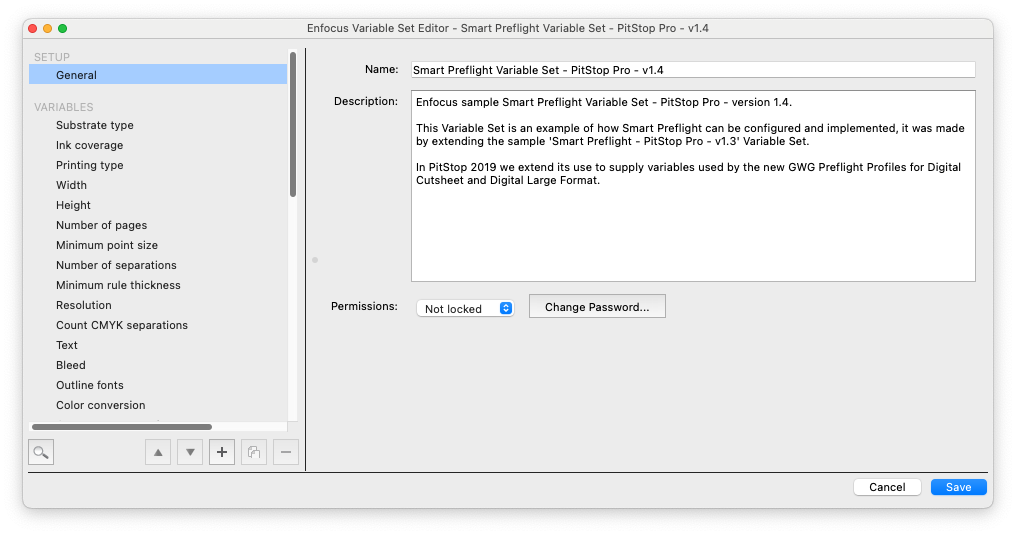
You can of course build your own. A variable needs only a few pieces of information.
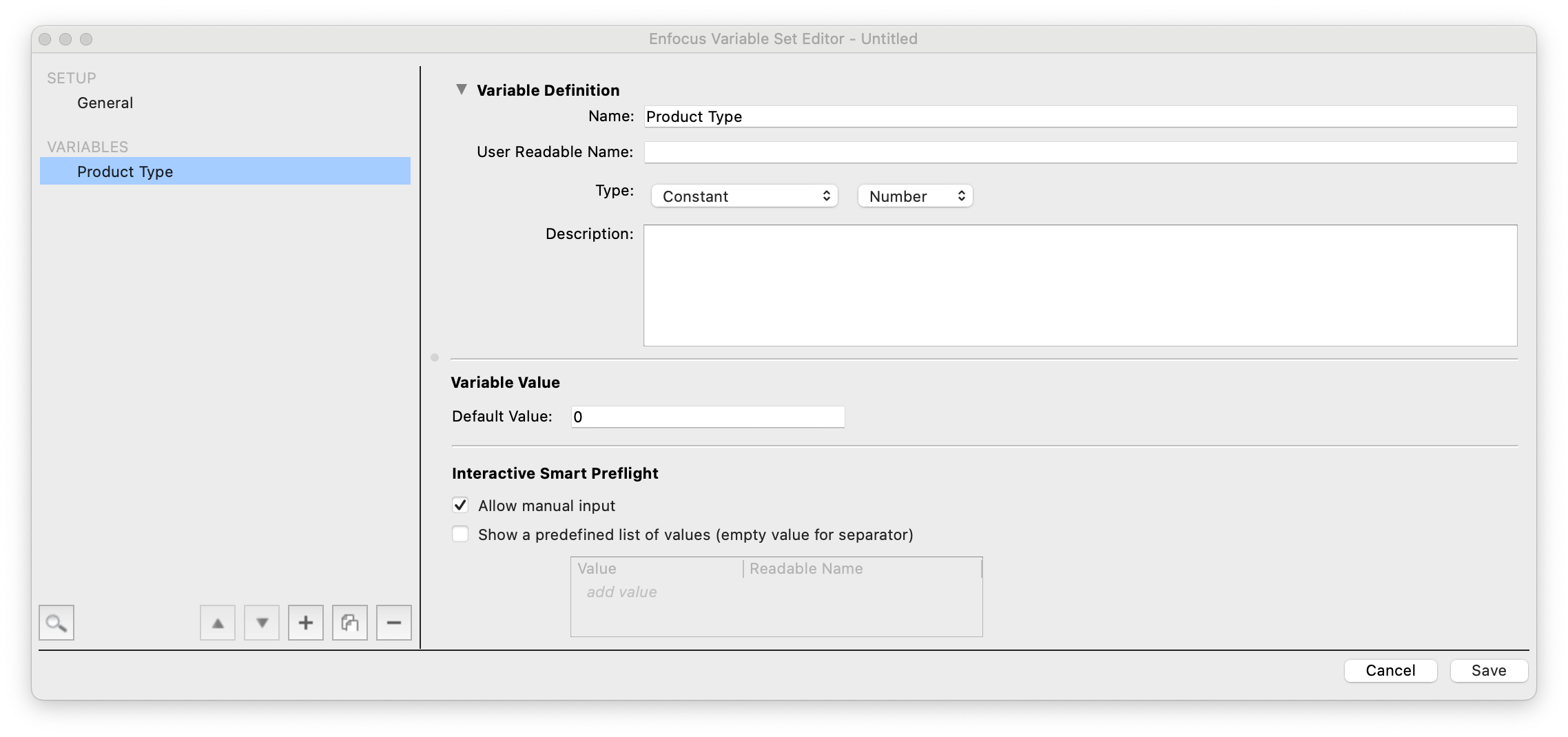
Required:
- A name: "Product Type" for example
- A type: Constant, Rule Based or Calculation Based, and its nature (Text, Number, Length or Boolean)
Optional:
- A user readable name, so the label means something to the people using it
- A description that adds context
- A default value, so the variable is never empty
You can also let users set the value by hand, and offer them a list of predefined values to choose from. Those two options apply to PitStop Pro only.
Where variables really shine
In a production workflow, you expect variable values to arrive from external metadata. But some values depend on other values. That is where things get interesting.
Remember the "Product Type" variable. In book printing, the product type could be "Wire-O", "Saddle-Stitch" or "Case-Binding", to name a few.
As the product type changes, so does the cover width you need to check. Order a "Wire-O" job and the width is one book width. Order a "Saddle-Stitch" job and the width you check is suddenly twice as wide. You could create a separate variable for every case.
The better answer is one "FinalWidthCheck" variable that reacts to the product type. This is exactly what Rule Based and Calculation Based variables are for. The value of "FinalWidthCheck" becomes the book width multiplied by a factor: 1 for "Saddle-Stitch", 2 for the other binding methods. In other words, "FinalWidthCheck" is a calculation of "BookWidth" times "PageWidthMultiplier".
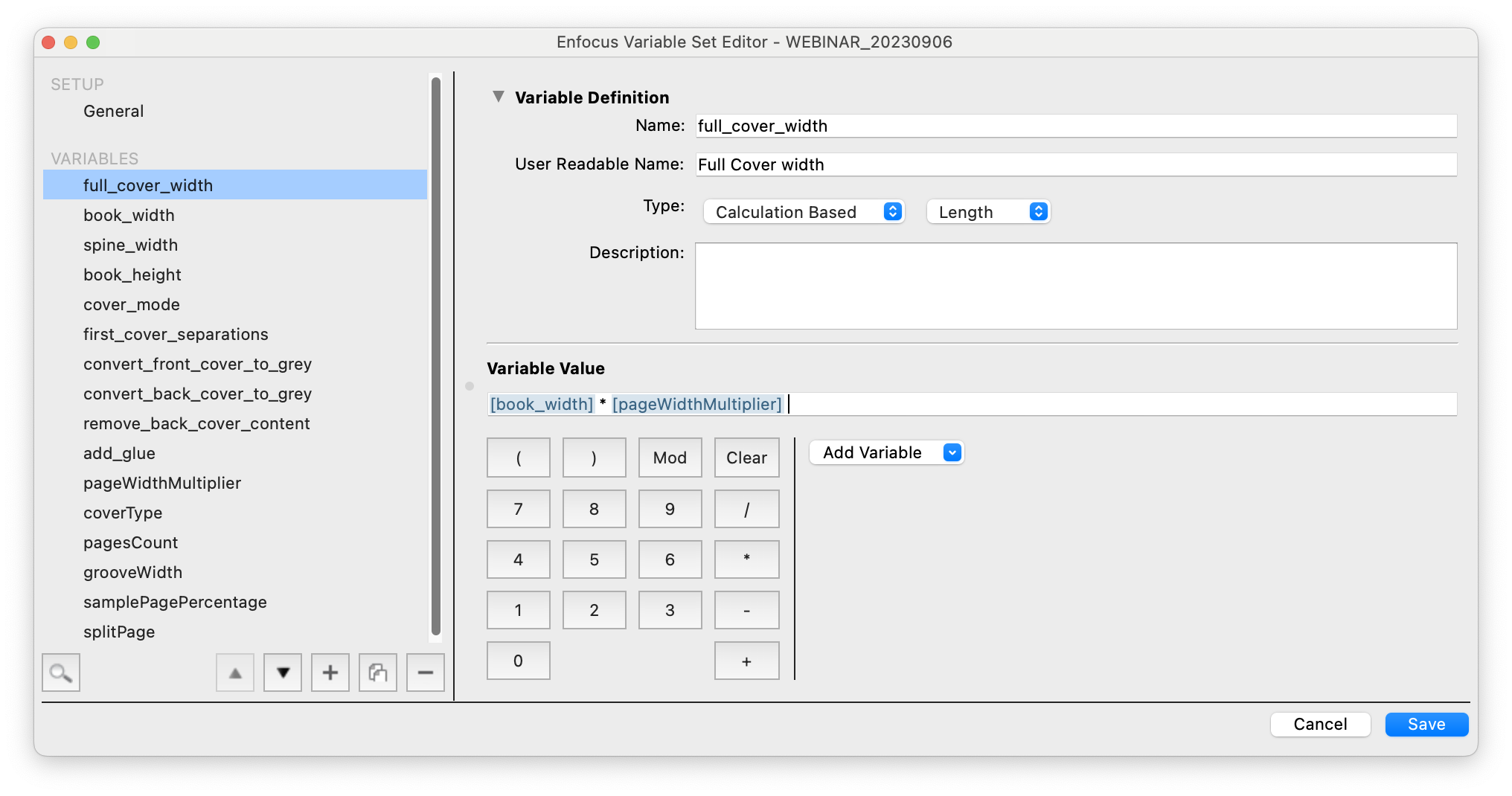
So what sets "PageWidthMultiplier"? The product type does, and it returns 1 or 2. That makes it a Rule Based variable.
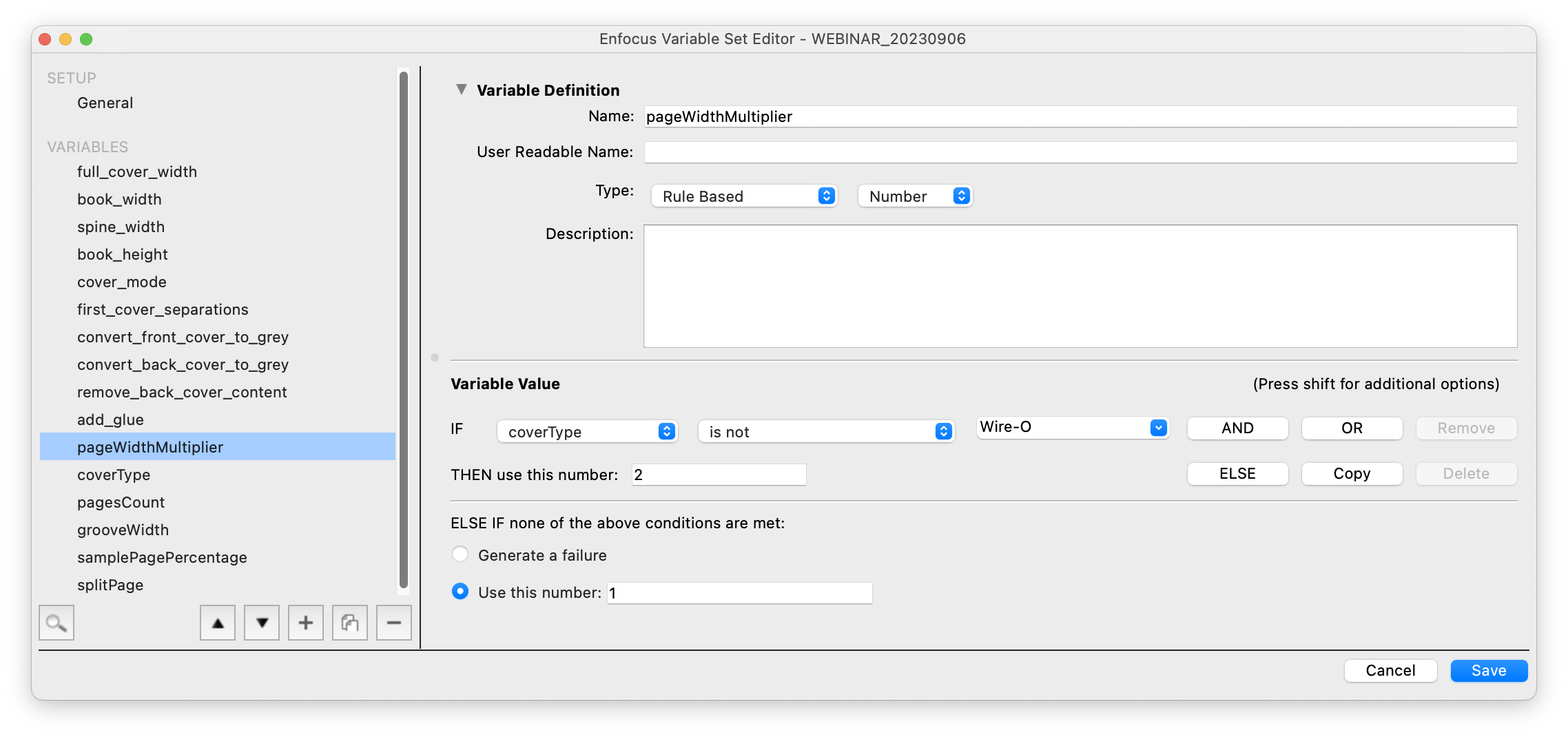
With a Rule Based variable, you tie the value to a condition. Here, if the product type is not "Wire-O", the value is 2. Otherwise it is 1. You could also choose to fail the job when no condition is met.
A full cover calculation may need more variables, such as the spine width, or extra space for grooves. The spine width itself can be a Calculation Based variable, built from a "PagesCount" variable, the paper thickness and a divisor. Smart Variables give you plenty of room to work.
Variables pave the path to automation
Once Smart Variables become part of how you work in PitStop Pro, you have given yourself a superpower. And when production grows and you add PitStop Server and Switch, you can automate your Preflight and PDF editing in far more advanced Switch flows. The product type no longer comes from an operator. It comes from your ERP or MIS system, or from an internal database.
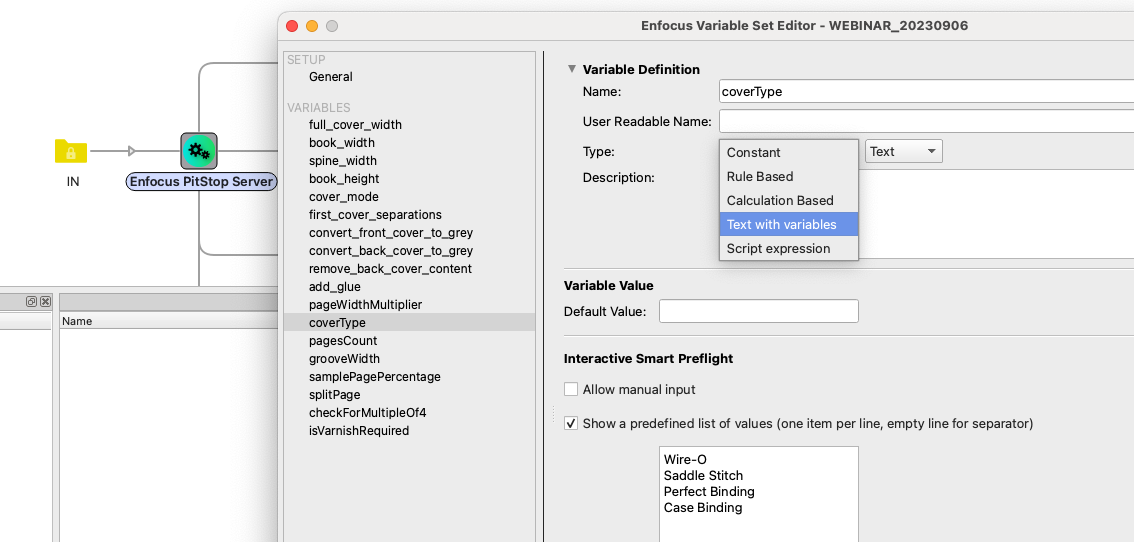
In a Switch flow, you tie the value of a variable straight to job metadata.
The best part is how little extra effort this takes. You reuse the same two concepts, Variable Sets and Smart Variables, and you connect them to the metadata that already arrives with the order. Reach that point and the return on your investment speaks for itself.
So next time you catch yourself duplicating a Preflight Profile or an Action List, hold your horses. Ask yourself whether that check or that action could use a variable instead. Your production will be much easier to maintain, and much easier to improve.