You don’t like color issues, PitStop doesn't either

Converting colors sounds simple. Convert RGB to CMYK. Convert RGB to black. Convert one CMYK profile to another. In practice, color conversion is much more complex.
A color conversion can significantly change the appearance of an artwork. Profiles, conversion settings, rendering intents, and target color spaces all influence the final result. That is why reliable color management is essential.
With PitStop Pro and PitStop Server, you can control color conversions, preview their impact, and make sure your files look as intended before they go to production.
Start with the right color management settings
Successful color conversion begins with choosing the correct color management settings. If the source or destination profile is wrong, the conversion result will be wrong as well. No conversion engine can compensate for inaccurate settings.
Fortunately, PitStop Pro and PitStop Server include a comprehensive set of ICC profiles and predefined color management settings. If you have already configured color management in Adobe Acrobat, PitStop Pro can use those settings. You can also choose from predefined settings for Europe, North America, or Japan.
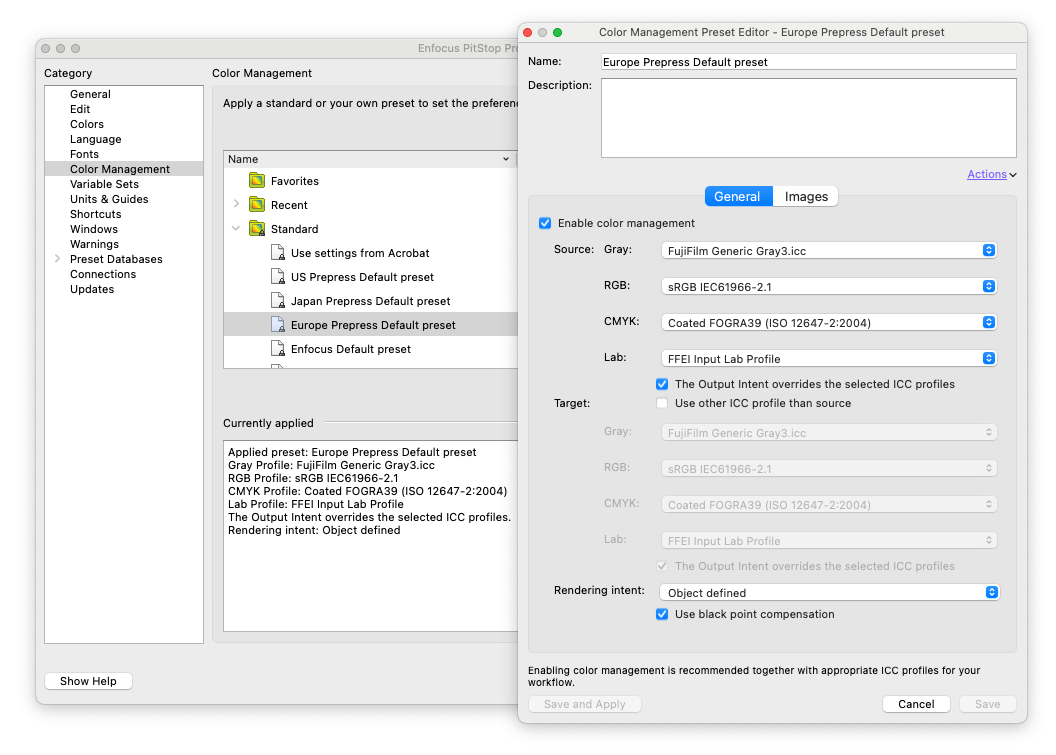
Need something more specific? Import your own ICC profiles and create customized color management settings that match your production environment.
You can even embed color management settings in resources such as Action Lists and Preflight Profiles. This helps ensure that colleagues use exactly the same settings, resulting in consistent color conversions across teams and locations.
Preview color shifts before you convert
Most color conversions involve moving colors from one gamut to another. In many cases, the destination gamut is smaller than the source gamut, which means some colors cannot be reproduced exactly. As a result, colors may shift during conversion.
Waiting until a job reaches the press to discover those shifts is risky and expensive. Instead, use the Gamut Comparison feature in PitStop Pro.
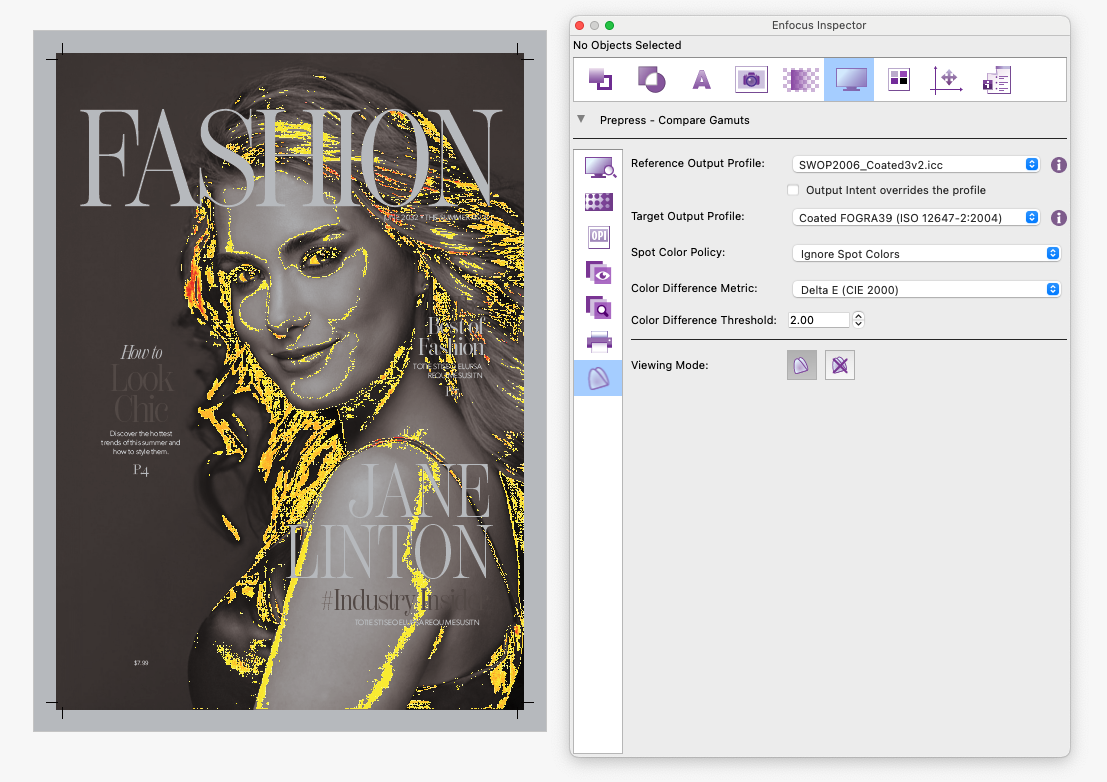
Gamut comparison showing limited impact
Select the source and destination ICC profiles, define an acceptable Delta E value, and preview the expected color changes. PitStop displays a heat map showing where deviations occur:
- Gray indicates no deviation.
- Light yellow indicates minor shifts.
- Purple indicates larger shifts.
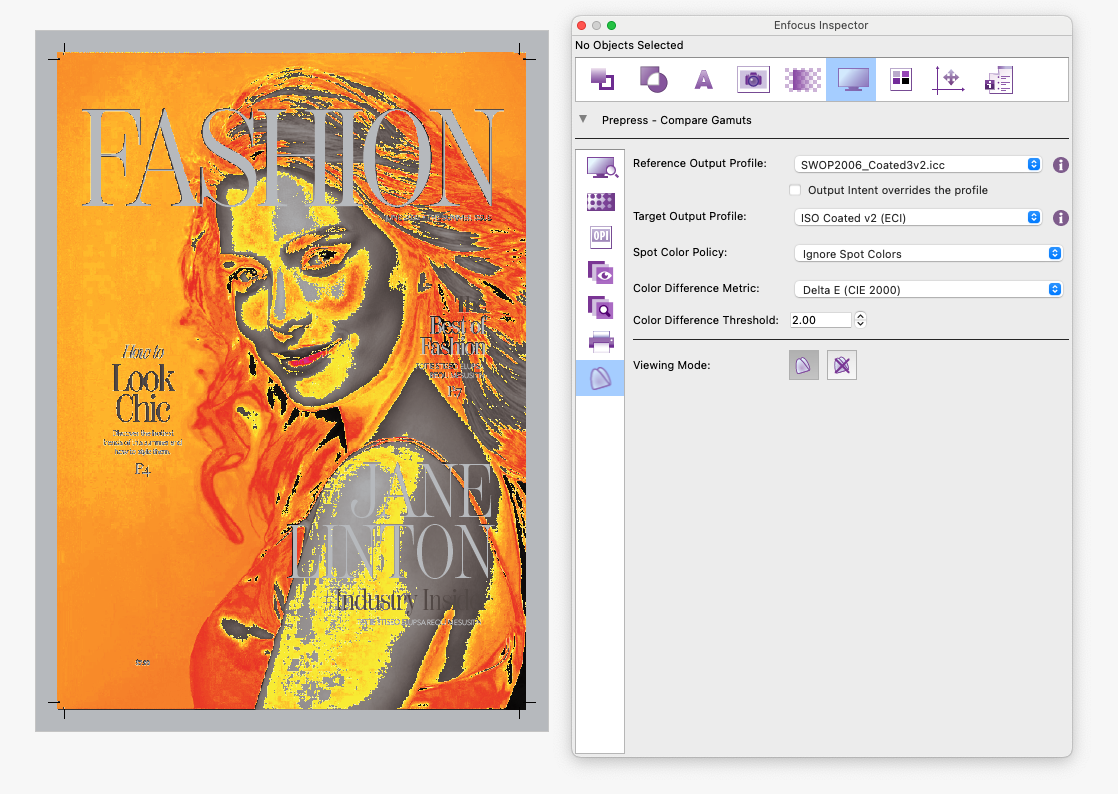
Gamut comparison showing higher impact
This gives you a clear picture of which areas are most affected before any changes are applied.
In PitStop Server, you can take this one step further. Jobs can be automatically routed based on their Delta E deviation. Files that stay within acceptable limits can move directly to production, while files that exceed the threshold can follow an alternative review process.
Convert an entire document or individual objects
Sometimes you need to convert an entire PDF. Other times, only specific elements require attention. To convert an entire document, run the default Global Change Convert to Color Space and choose the target color space. The conversion uses the active color management settings.
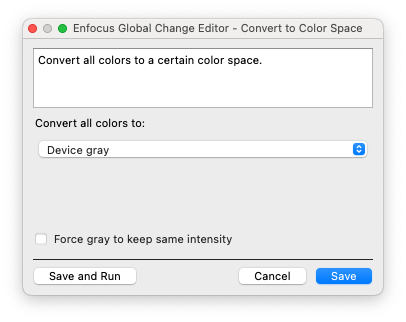
Using a Global Change to convert to gray...

...converts the entire document to gray
For more precise control, select an object and use the PitStop color conversion tools to convert only that object. You can also automate object-level conversions through Action Lists and Preflight Profiles, helping you maintain consistency across large volumes of files.
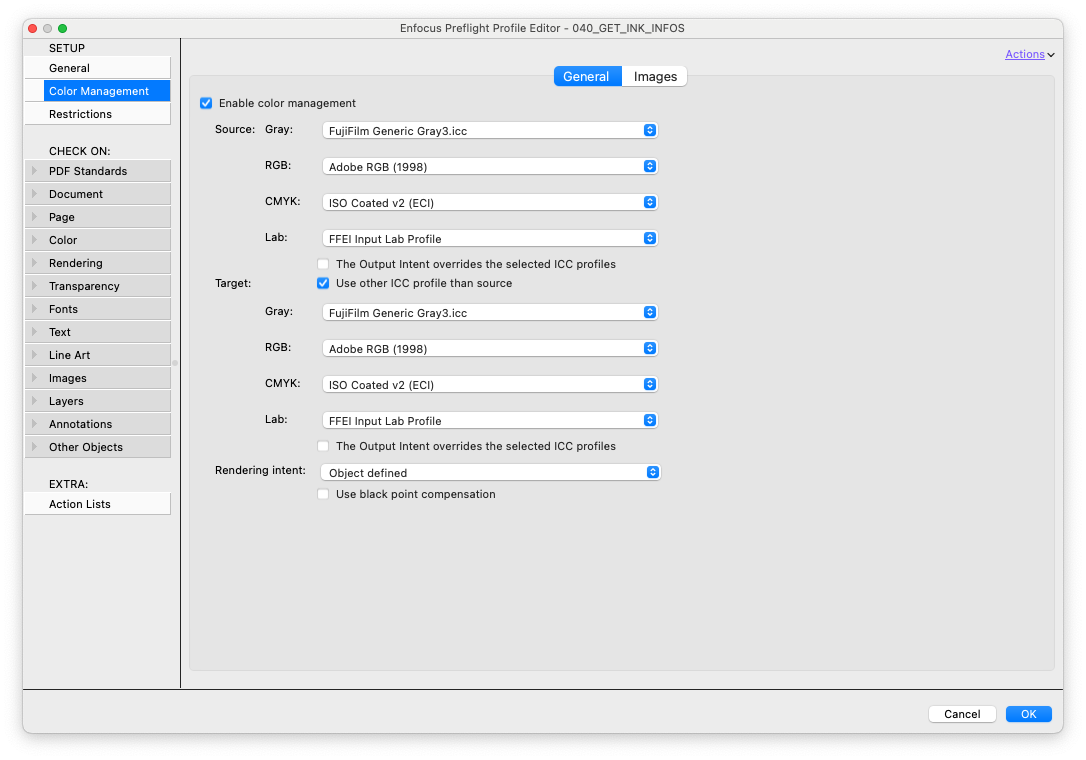
Example of Color Management Settings inside a Preflight Profile
Optimize CMYK-to-CMYK conversions with DeviceLink profiles
Standard color conversion methods can handle CMYK-to-CMYK conversions, but they are not always the most efficient approach. For these situations, DeviceLink profiles provide a more direct conversion path between two CMYK color spaces. Instead of performing multiple intermediate calculations, DeviceLink profiles define exactly how color values should be remapped from one profile to another.
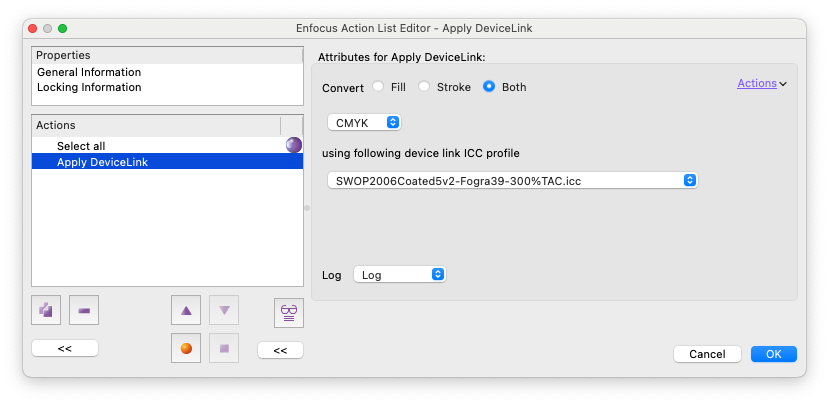
PitStop Pro and PitStop Server include a collection of predefined DeviceLink profiles that support:
- CMYK profile conversions
- Ink coverage reduction
- Production-specific color optimization
This helps preserve color appearance while improving conversion efficiency.

The original color

Classical Color Conversion

DeviceLink Color Conversion
In the example above, a color was converted through a classical CMYK to CMYK color conversion. The one on the bottom was converted using DeviceLink. In both cases, the source and destination ICC profiles were the same. Yet color values differ.
Remap colors with precision
Color conversion is only one part of color management. Sometimes you need to replace one color definition with another.
For example, you may want to:
- Replace a specific CMYK color with a spot color.
- Convert a process color channel into a specialty ink.
- Map a Magenta channel to a custom spot color such as Neon Pink.
With PitStop, you simply define the source color, color space, or channel and specify the desired destination. PitStop performs the remapping quickly and accurately.
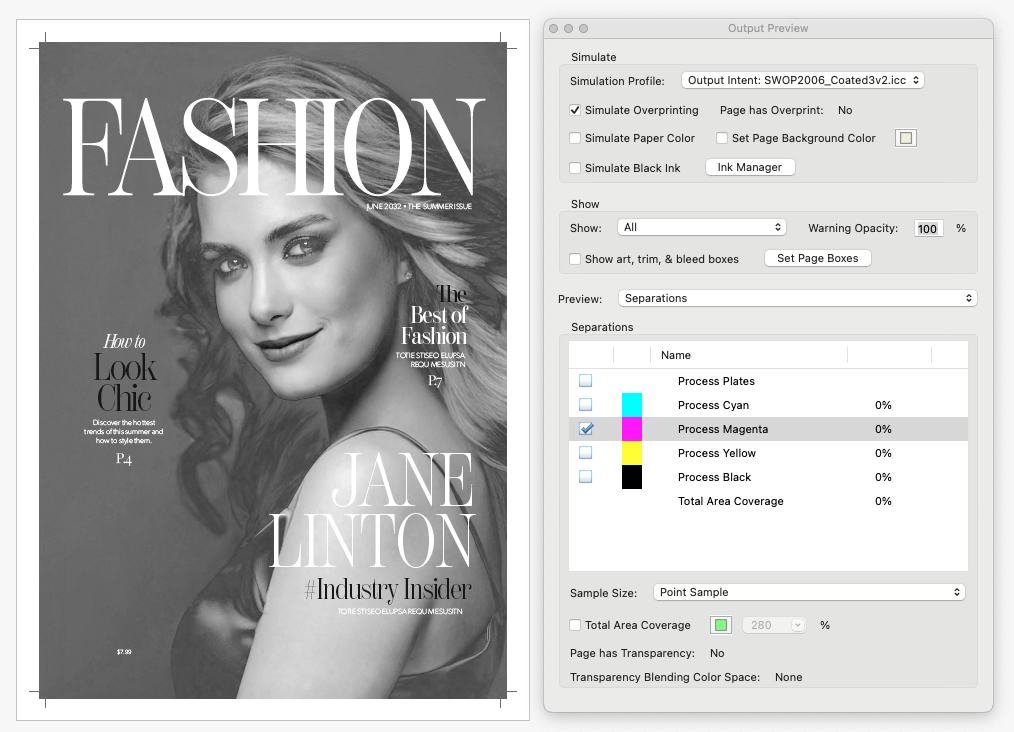
A document with some data in the Magenta channel
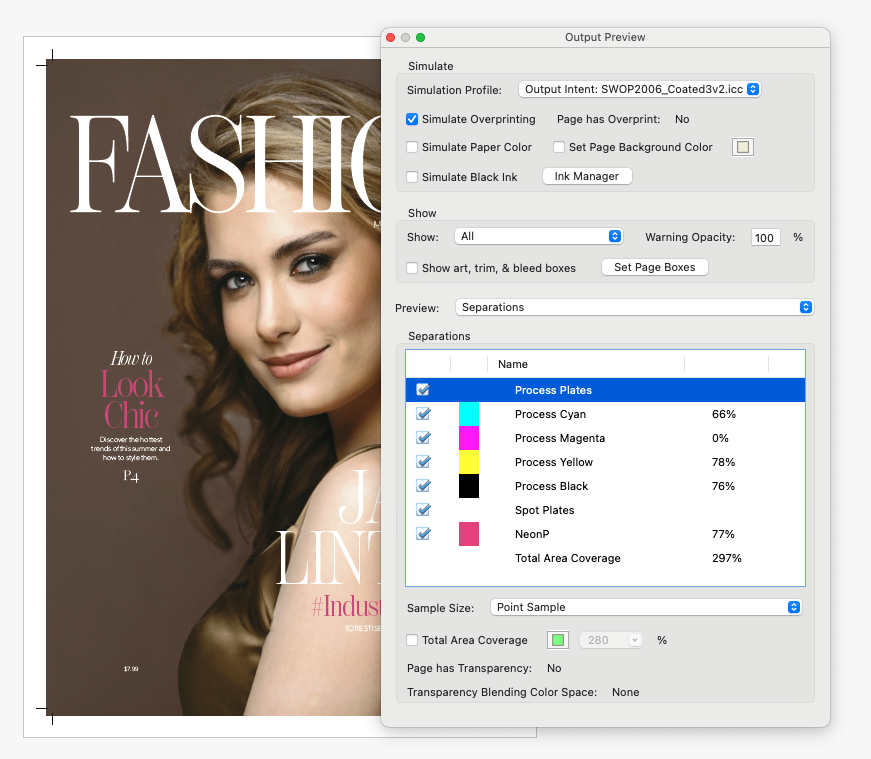
The magenta channel remapped to NeonP
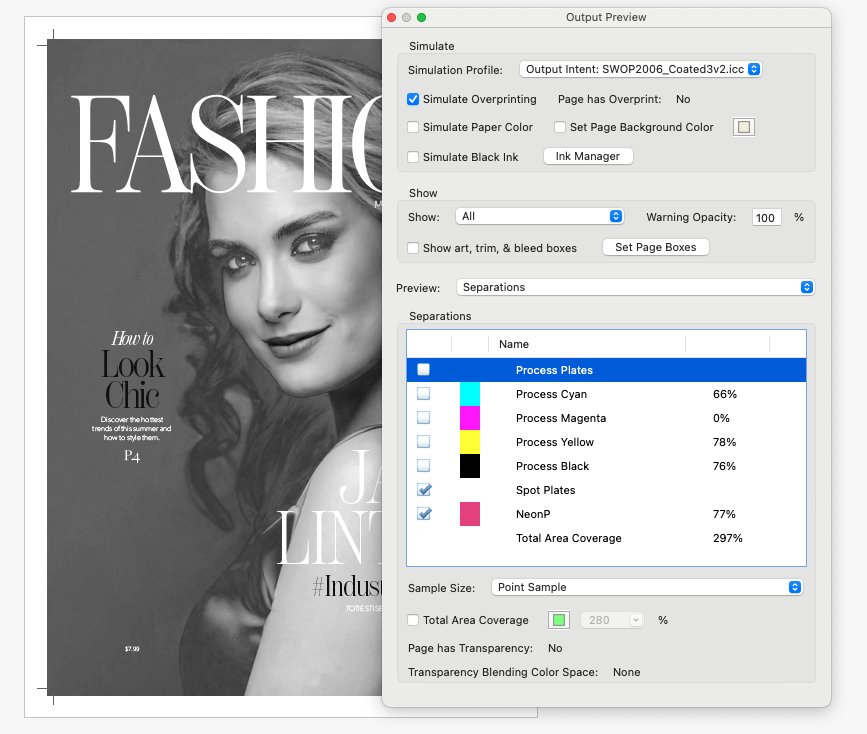
The NeonP channel, isolated
Conclusion
Color management plays a critical role in producing predictable print results.
Whether you need to convert colors manually in PitStop Pro or automate color conversions in PitStop Server, you have the tools to work with confidence. Built-in color management settings, ICC profiles, DeviceLink profiles, Action Lists, and Preflight Profiles help you maintain consistency and avoid costly surprises during production.